
01 / The story
The voice I wanted came with a cost I did not expect
I wanted to build a personal assistant, and I had a particular voice in mind. I liked it enough that getting the voice right became a priority. At the time, ElevenLabs was the best option I had found for the spoken replies I wanted.
I connected it as a streaming voice service. In less than fifteen minutes, I had used up my allowance. Then came the email telling me to upgrade. The cost of continuing was far more than I was willing to pay for a personal voice assistant.
That experience was the trigger. Could I build the voice side myself? What would I need to run it locally? Speech recognition, language models and speech generation were already available as separate components. I needed to put them together.
I experimented with those pieces until I had a workflow that could take dictation in the application I was using, clean up the text and let my own applications speak a reply. The local setup below is the result, not a claim to reproduce the original ElevenLabs voice.
I started with Pindrop, the open-source Mac dictation app, and forked it as NautPin. I connected its AI enhancement to a local language model and added the Logbook for reviewing my dictation history. Kokoro supplied the speech-output service.
02 / The problem
I wanted everyday use without a running voice-service bill
The first problem was cost. I wanted to use the assistant without wondering how quickly a conversation would exhaust my allowance. Building locally also let me choose the components and reuse them in my own applications.
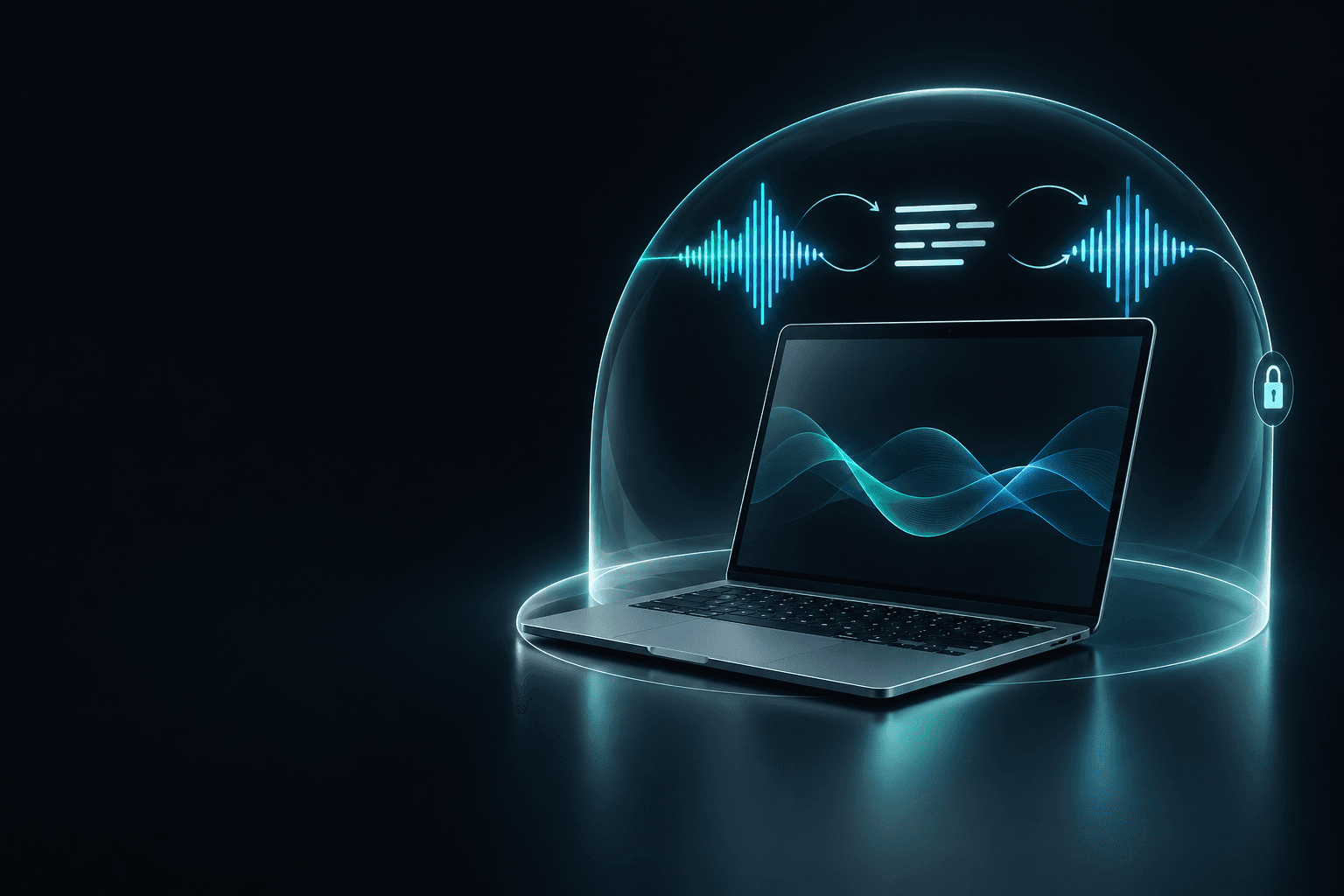
Keeping the processing local also changes the data path. Audio and transcripts do not need to pass through a cloud speech or cleanup API. That depends on the configuration: choosing a cloud model or passing text to a hosted coding assistant still sends that text outside the Mac.
Local processing has its own costs and limits. Models take disk space and memory, the Mac supplies the compute, and I maintain the services. Avoiding per-request cloud charges does not make the hardware or electricity free.
03 / How it works
Connect dictation, cleanup and speech output
NautPin captures the voice input
A hotkey starts and stops dictation. An on-device transcription engine turns the audio into text. NautPin can pass that transcript to a configured local language model for cleanup, then insert the result at the cursor in the focused application.
Our additions to Pindrop include hotkey improvements and a Read Selected Text command. Highlight text in an application, trigger the command and NautPin sends it to the configured Kokoro service to read aloud. Local language-model cleanup is also part of the workflow.
A local model cleans up the transcript
LM Studio or Ollama provides the model endpoint. NautPin sends the transcript and cleanup instructions to that service. You choose a model that fits the Mac and check that its edits preserve what you said. Cleanup should not quietly change names, technical terms or meaning.
The single-Mac setup uses loopback addresses: http://127.0.0.1:1234/v1 for the guide's LM Studio setup, or http://127.0.0.1:11434/v1 for Ollama. Match the address to your running server.
Kokoro turns text into speech
Kokoro-FastAPI supplies a local /v1/audio/speech endpoint. The guide runs its CPU container and binds port 8880 to 127.0.0.1. An application can send text to it and play the returned audio. This step is optional for dictation.
Hotkey and microphone
  → NautPin transcribes on the Mac
  → Local model cleans up the transcript
  → Text appears at the cursor

Optional speech output:
Text or an application reply
  → Kokoro on the Mac
→ Audio playbackThe services communicate through local HTTP endpoints. Keeping them loaded can reduce repeated startup work, but speed depends on the selected model, hardware and input length. The CPU container is not an Apple GPU or MLX backend.
The Logbook makes dictation history useful
I also wanted to explore what my speech patterns could tell me over time. We added analysis of speaking pace and language use to the Logbook for that purpose. It gives me a record to examine rather than relying on my impression of how I have been speaking.
The Logbook uses the local transcript store to show word counts, average and median speaking pace, vocabulary diversity, activity streaks and time-of-day patterns. It also tracks destination applications, repeated phrases and sentence openers.
Other views examine question frequency and language register. A configured local model can group topics from the history. Text-pattern wellbeing indicators are exploratory signals, not a medical assessment. Transcript history remains sensitive even when it is stored locally.
What I use it for, and what remains unfinished
I use dictation for drafts, messages and thinking aloud. Speech output lets an application read text or an assistant's reply back to me. The same endpoints can be connected to other tools without making NautPin the centre of every workflow.
The setup described here is hotkey-driven. Continuous listening and automatic turn-taking are not part of this build. Using it with a hosted assistant also does not make that assistant local; only the voice processing and configured cleanup model run on the Mac.
04 / Installation
Let's install it on your Mac
Start with the preparation guide. It covers the Mac requirements, model storage, Homebrew, Xcode and the microphone and accessibility permissions needed by NautPin.
Install the container runtime, verify Kokoro, then start a local language model. Build NautPin and connect it only after each service responds on its own. The final guides test the complete workflow and cover troubleshooting.
Model and container downloads need a network connection during setup. To keep processing on this Mac afterwards, select local providers and bind the servers to loopback rather than exposing them to the network.
Start with the installation requirements, or choose the relevant guide below.
